

-
Navigate to the Calls Page
Start by going to the Calls page in your application. Here, you will find the list of available phone numbers, including the AIVIO phone number, which you will use for outbound calls. -
Select the AIVIO Phone Number
Once you’re on the Calls page, locate and select the AIVIO phone number. This selection is crucial as it enables you to make calls using the designated number for your outbound communications. -
Initiate a Manual Call
After selecting the number, look for the phone icon at the bottom left of the screen. Clicking this icon will allow you to initiate a manual call. Ensure that your device is connected and ready to make calls. you can make a phone call by clicking the phone icon at the bottom left of the screen.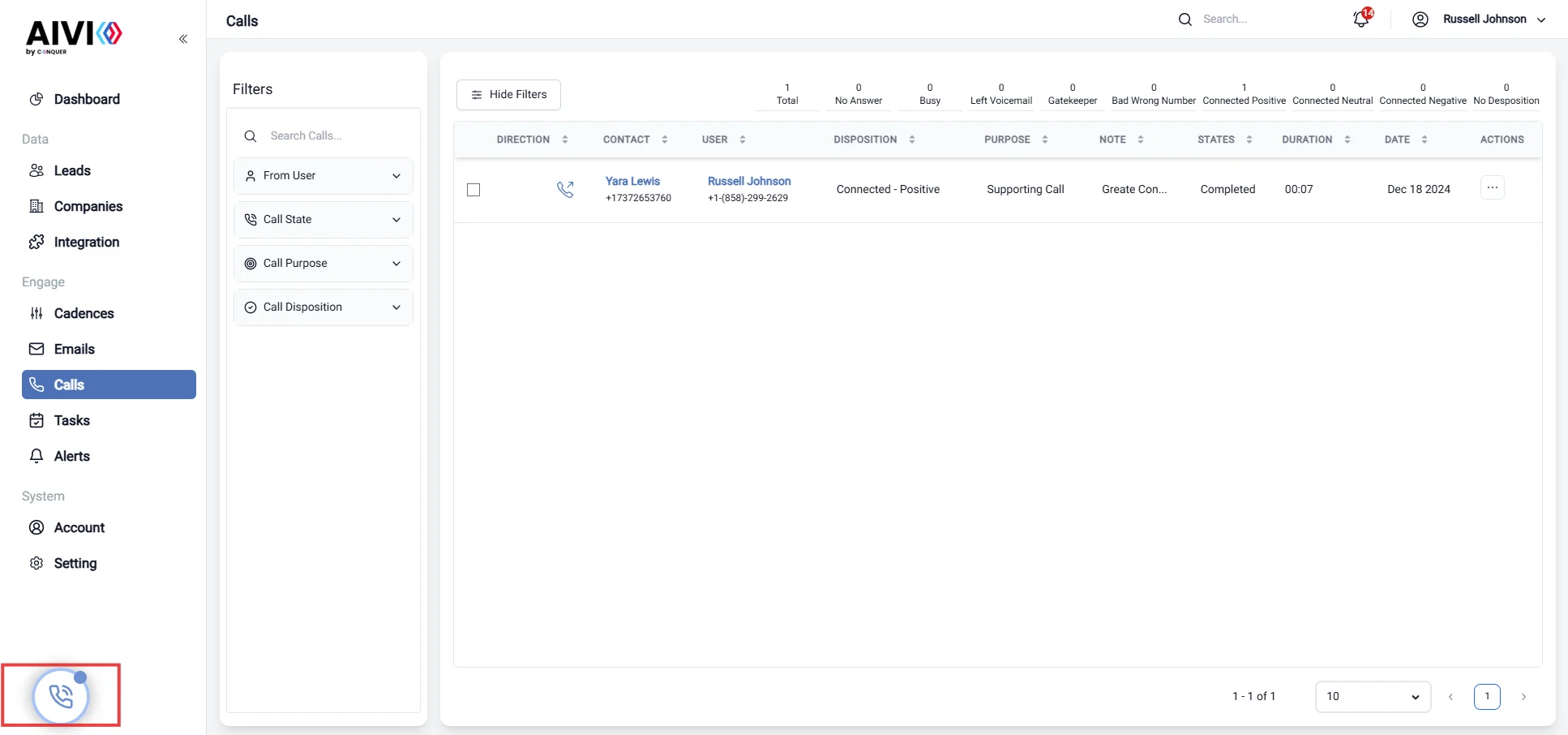
-
Calling a Lead from the Leads Page
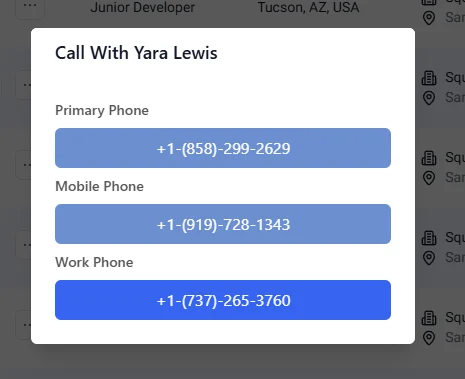
You can also make calls directly to leads. To do this, navigate to the Leads page, find the lead you wish to contact, and use their provided phone number to initiate the call.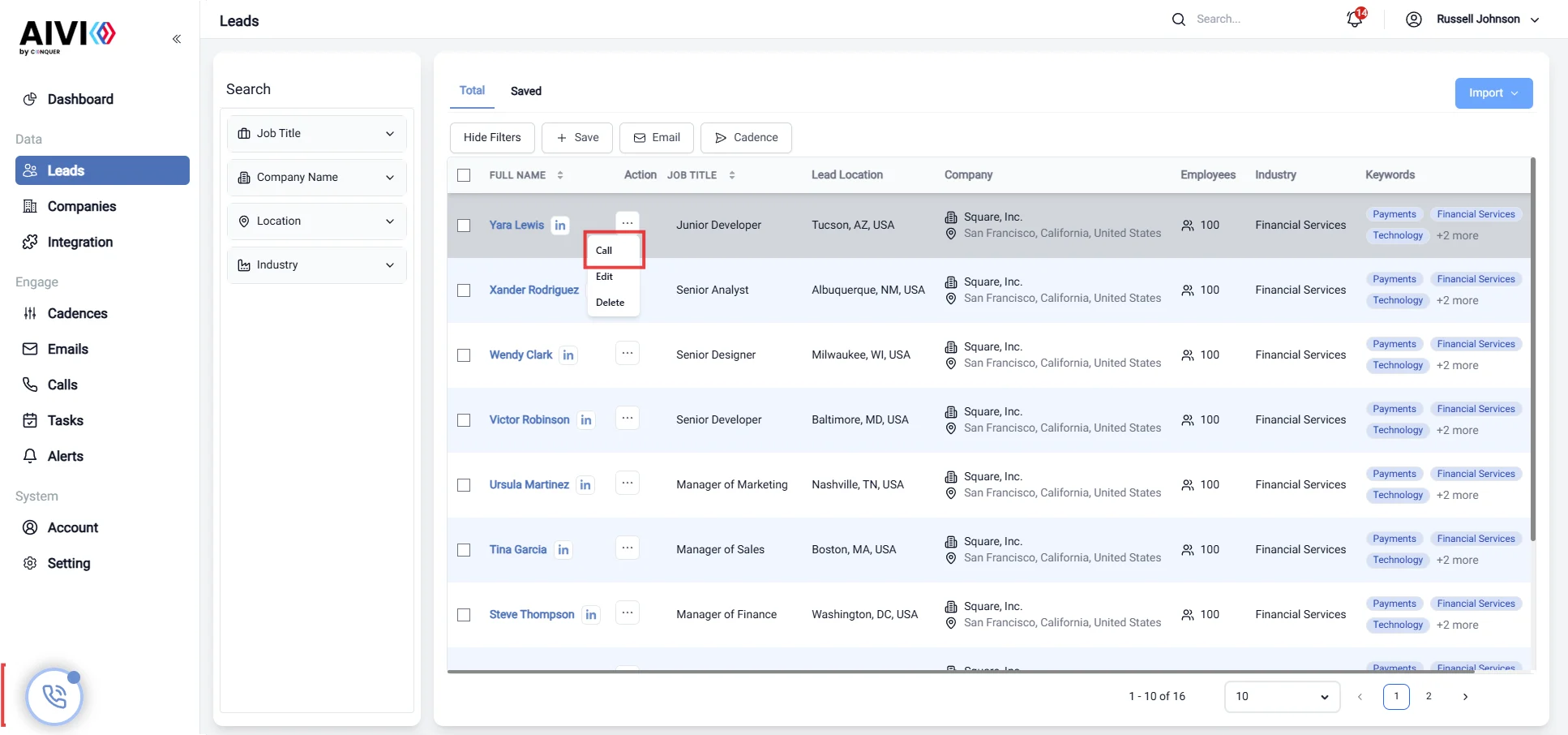
-
Logging the Call
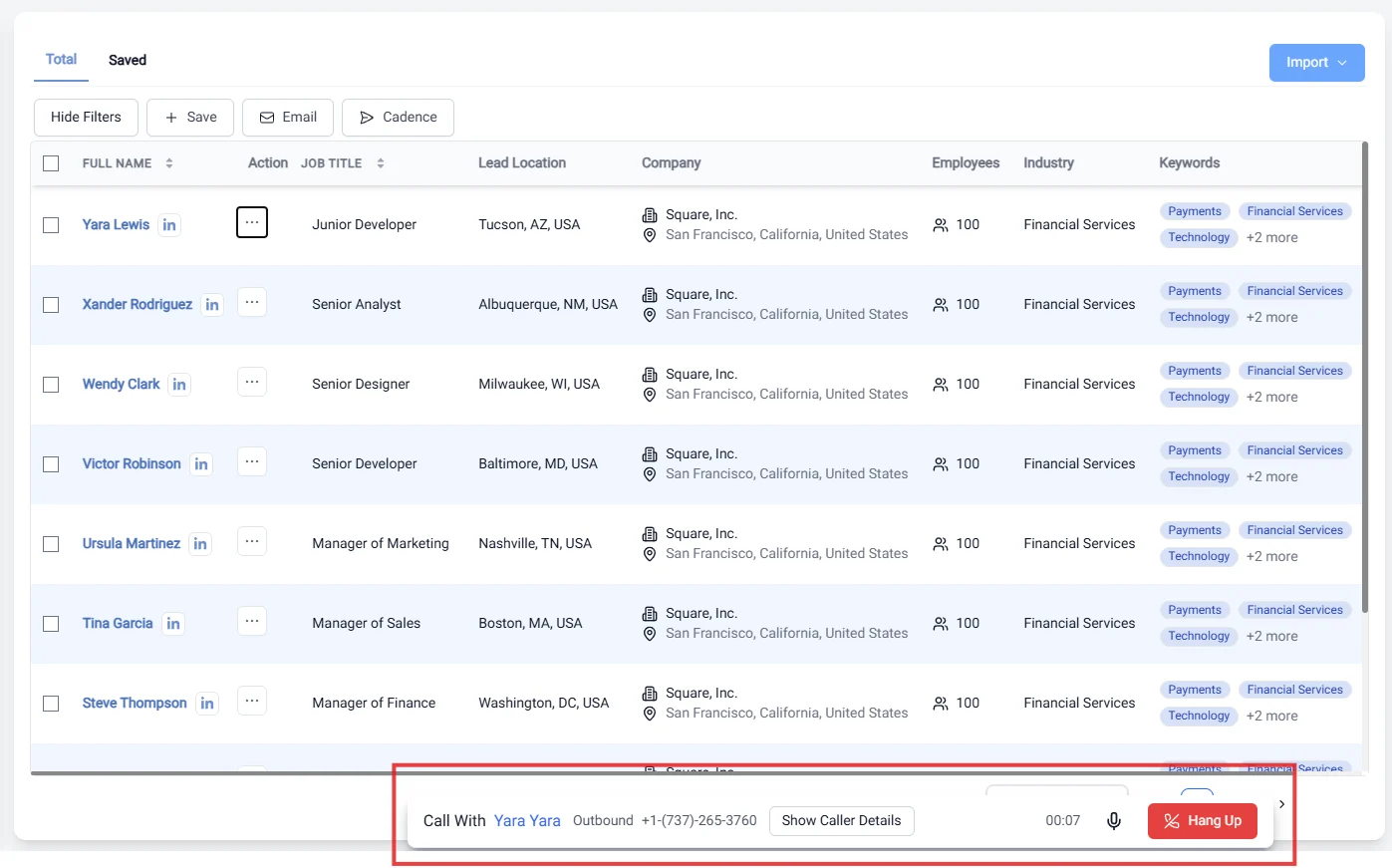
If you click the Hang Up button after your conversation, you will be prompted to log the call. It’s important to provide detailed information about the call, including the outcome, any important notes, and follow-up actions required.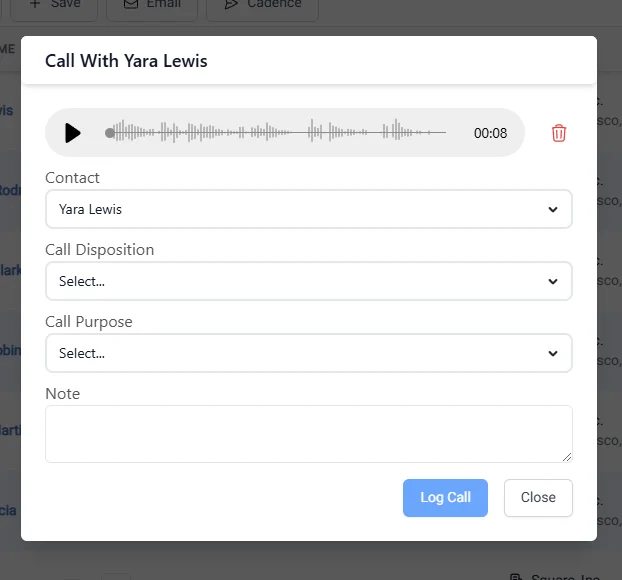
-
View Call History
After logging the call, you can review the call history on the Calls page. This history will help you track previous communications and manage follow-ups effectively.
Call
Outbound Call
Outbound calls are an essential part of our communication process. This guide will help you navigate the system to make calls efficiently and log them accurately. Follow these steps to ensure a smooth calling experience.