

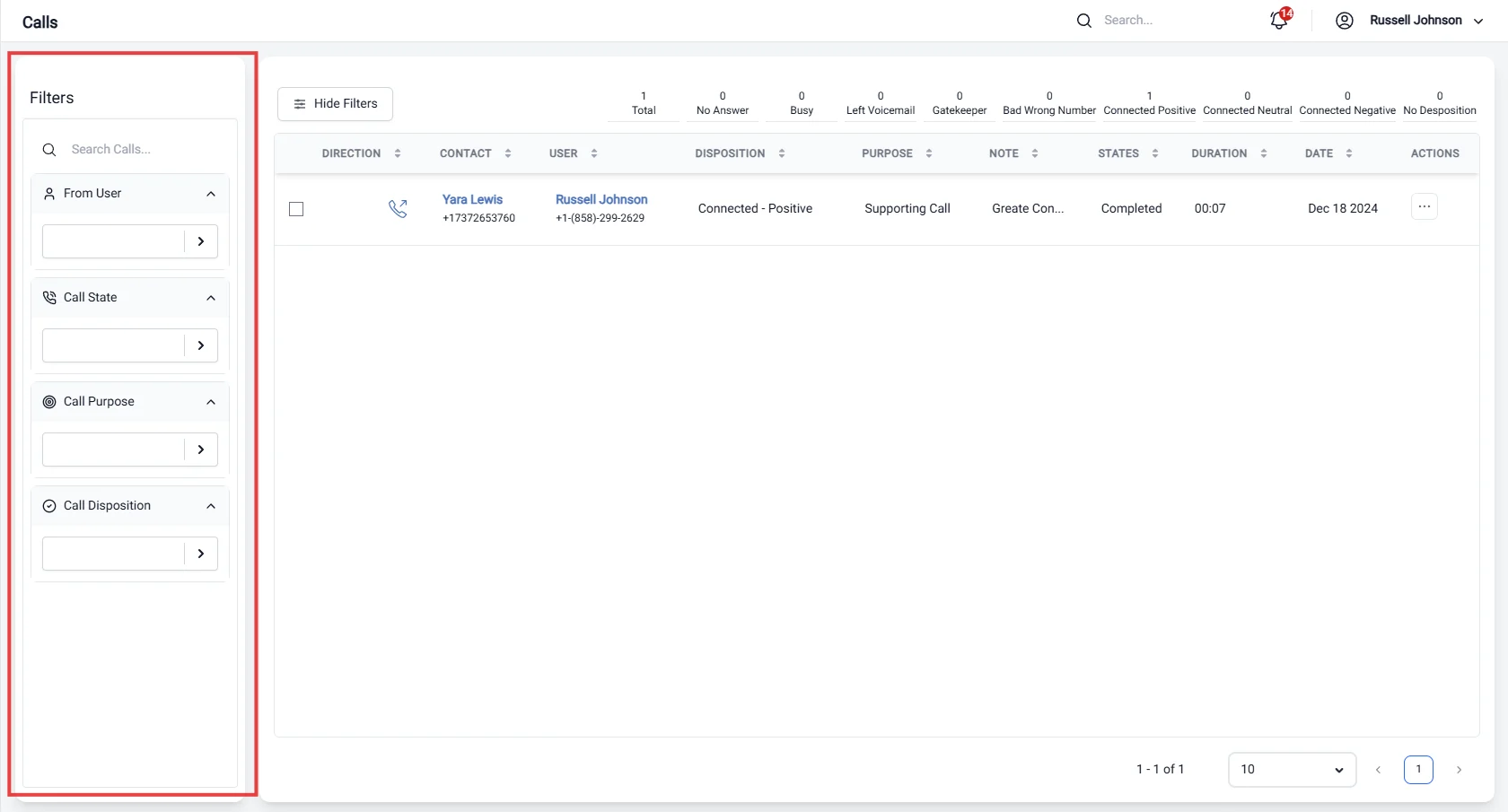
Filter Options
1. Assignee
- Select an assignee to view calls assigned to specific team members.
2. Call State
- Choose from the following call states:
- Pending: Calls that are scheduled but not yet initiated.
- Accepted: Calls that have been accepted by the assignee.
- Ringing: Calls that are currently ringing.
- Incoming: Calls that are being received.
- Open: Calls that are currently active.
- Busy: Calls where the recipient is currently on another line.
- Rejected: Calls that were declined by the recipient.
- Completed: Calls that have been successfully finished.
- No Answer: Calls that were not answered by the recipient.
- Cancelled: Calls that were cancelled before completion.
- Failed: Calls that did not connect successfully.
- Missed: Calls that were not answered or connected.
3. Call Disposition
- Filter calls based on their disposition:
- No Answer: Calls that were not answered.
- Busy: Calls that encountered a busy signal.
- Left Voicemail: Calls where a voicemail was left.
- Gatekeeper: Calls answered by a gatekeeper instead of the intended recipient.
- Bad Wrong Number: Calls that were misdialed.
- Connected Positive: Calls that resulted in a positive outcome.
- Connected Neutral: Calls that ended without a clear outcome.
- Connected Negative: Calls that resulted in a negative response.
- No Disposition: Calls that have not been categorized.
4. Call Purpose
- Select the purpose of the call:
- Opportunity Call: Calls made to discuss potential business opportunities.
- Prospecting Call: Calls aimed at identifying and qualifying potential leads.
- Supporting Call: Calls made to provide assistance or support to existing customers.
- Other Call: Calls that do not fit into the other specified categories.
Apply Filters
- Use the above options to refine your call data and gain insights into your calling performance.