

Manually Created Task
You can create a task manually by clicking on the Create Task button located in the top right corner of the page. Additionally, your Sales Manager can also create a task for you using the same button and assign it directly to you.Steps to Create a Manually Created Task:
- Click on the Create Task button.
- Fill in the required details such as title, lead, type, priority, and due date.
- Add any relevant notes for context.
- Click Save to create the task.
Auto Created Task
Auto Created Tasks are generated automatically based on predefined cadence steps. These tasks are integral to maintaining a structured workflow.How Auto Created Tasks Work:
Tasks are created automatically as you progress through the cadence steps. Upon completion of a task, the cadence will move to the next step. If a task is not completed, the cadence will pause, preventing progression until the task is finished.Benefits of Auto Created Tasks:
Ensures that you follow a structured approach to your work. Helps in maintaining a consistent workflow without manual intervention. Task Details You can view the details of each task by clicking on the task name. This will provide you with comprehensive information about the task, including:Task Details
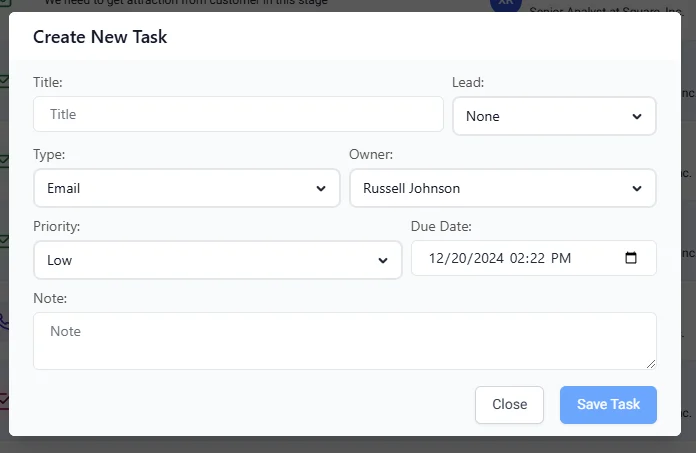
Task Information Includes:
- Title: The name of the task.
- Lead: The associated lead for the task.
- Type: The type/category of the task (e.g., Manual Email, Cold, Action and etc.).
- Owner: The person responsible for completing the task.
- Priority: The urgency level of the task (e.g., critical high, medium, low).
- Due Date: The deadline for task completion.
- Note: Any additional notes or context related to the task.
- State: The current status of the task, which can be one of the following:
Task State Description COMPLETE The task has been finished INCOMPLETE The task is still pending SKIPPED The task was intentionally not completed ARCHIVED The task has been archived for future reference.