

Create a New Task
Creating a new task is a straightforward process that allows you to organize and manage your workload effectively. Follow these steps:-
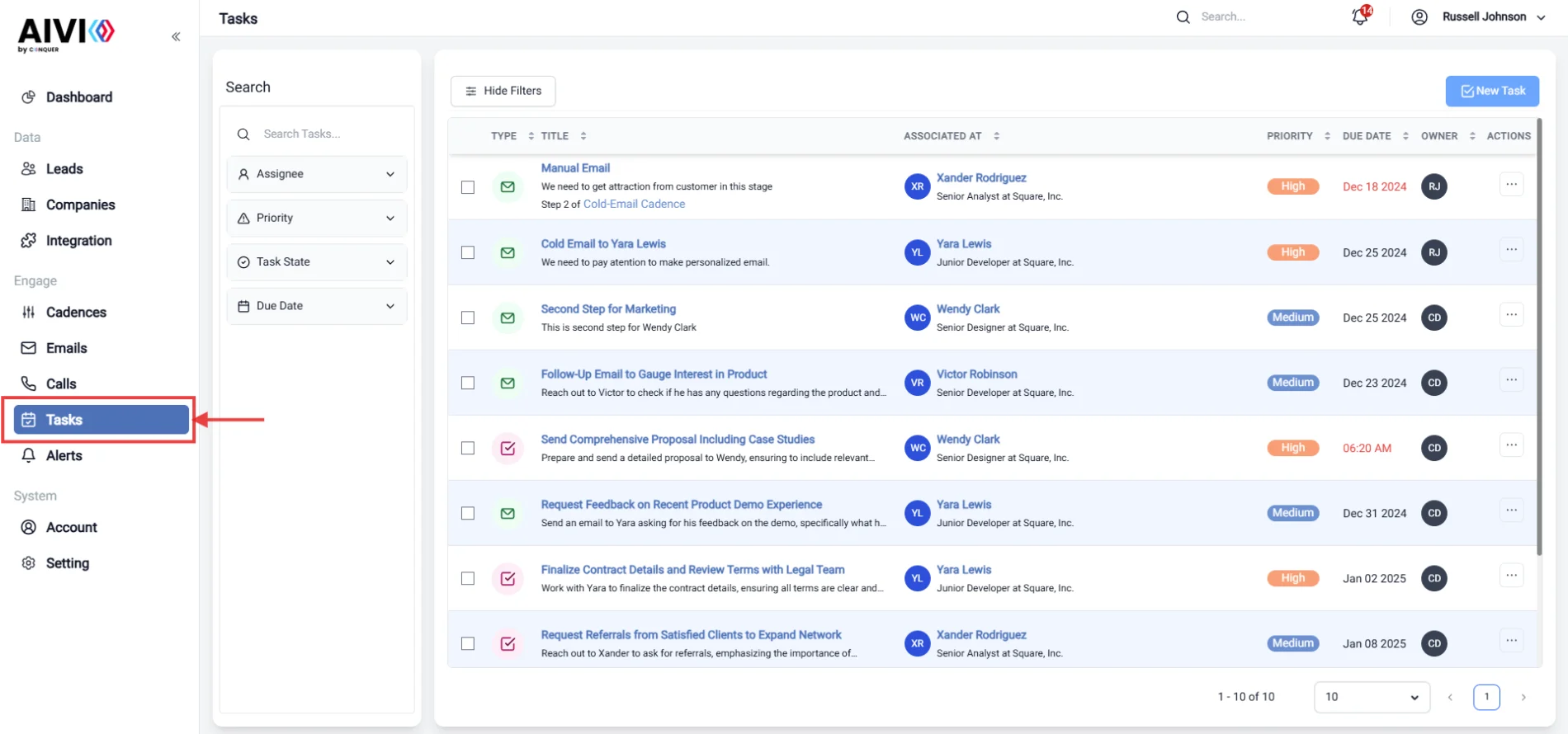
Go to the Tasks Page.
Navigate to the main dashboard and click on the Tasks section to view all existing tasks.
-
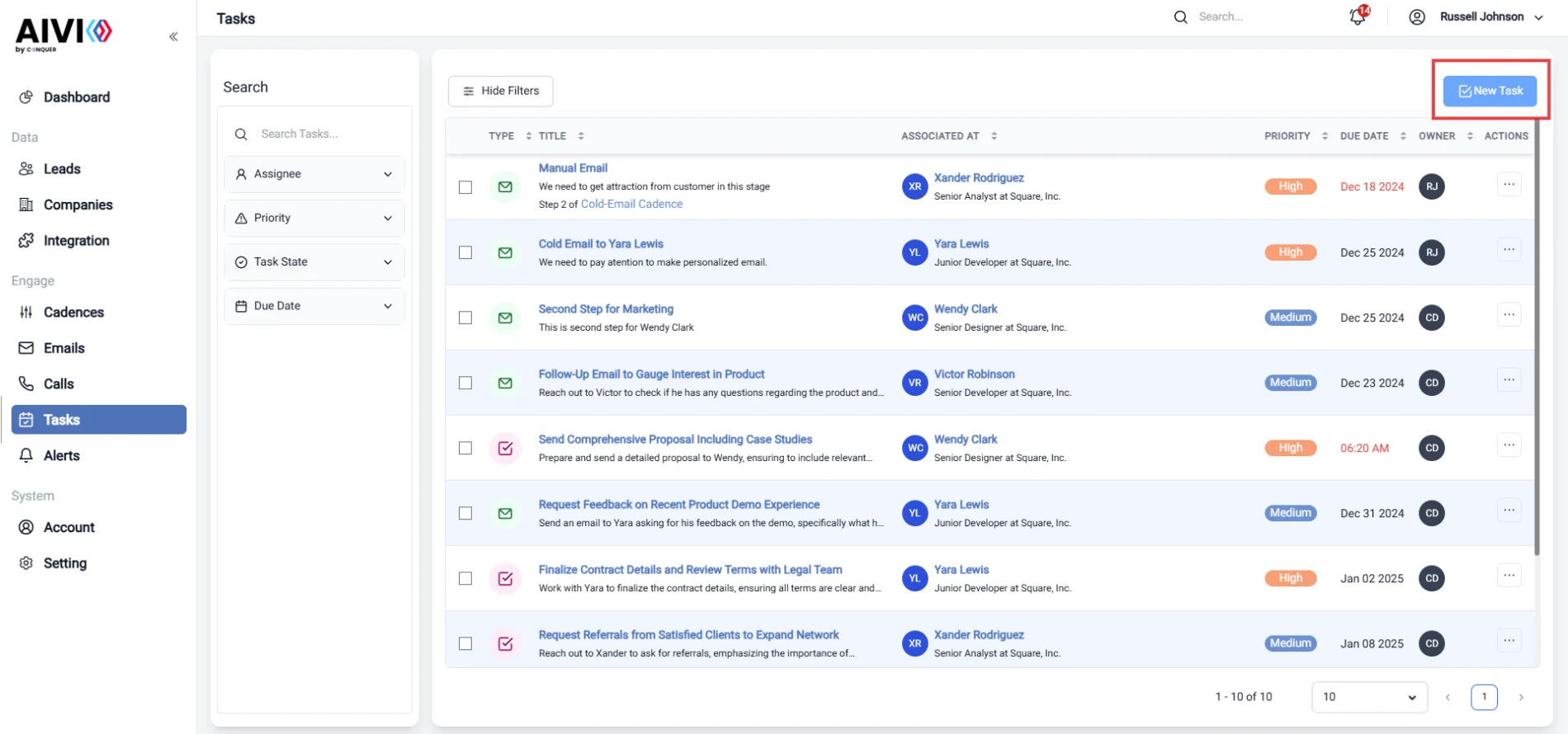
Click on the “Create Task” Button.
Once on the Tasks page, look for the Create Task button. Clicking this will open a new window where you can input the details of your task.
-
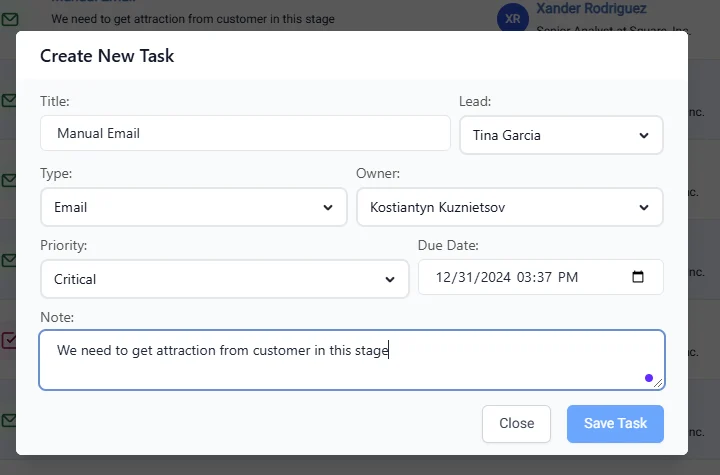
Fill in the Required Fields.
Enter all necessary information for the task, including the title, description, assignee, priority, due date, and any additional notes. Once you have completed the form, click on the Create button to save the task.
Update a Task
Updating a task allows you to make changes to existing information, ensuring that your task management remains accurate and up-to-date.-
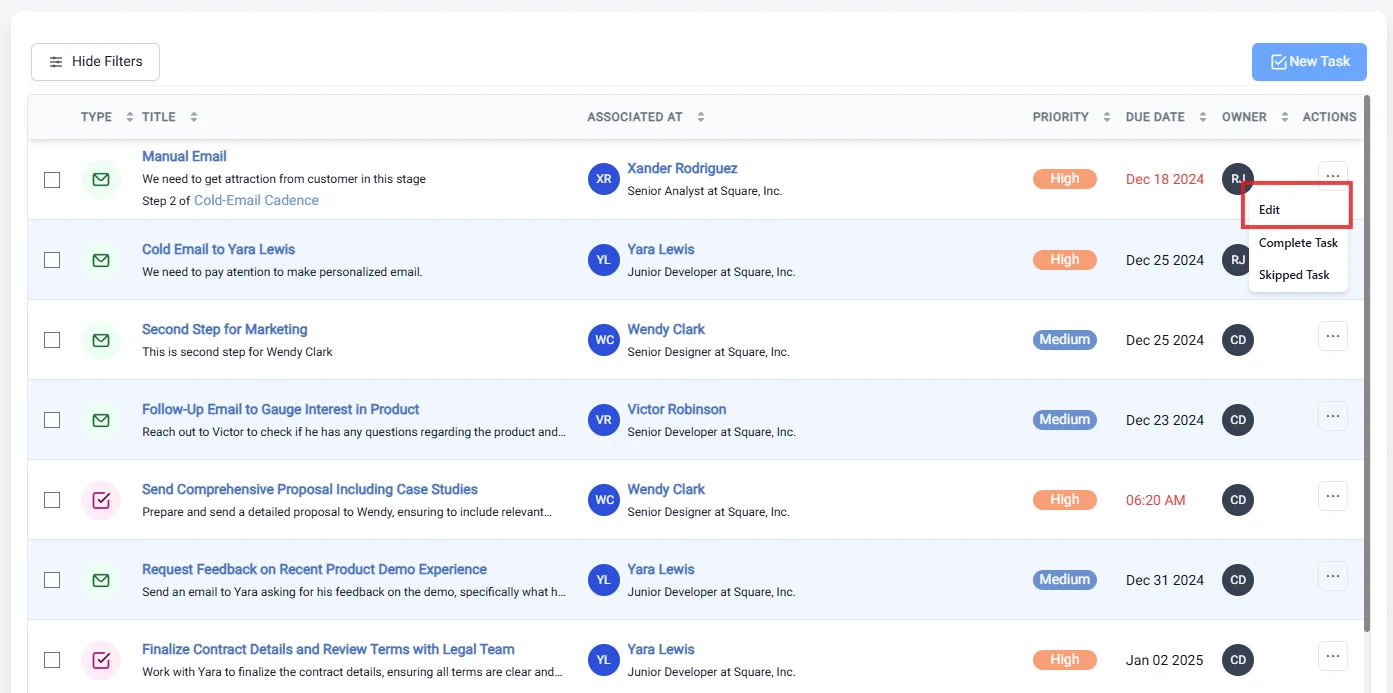
Go to the Task Page.
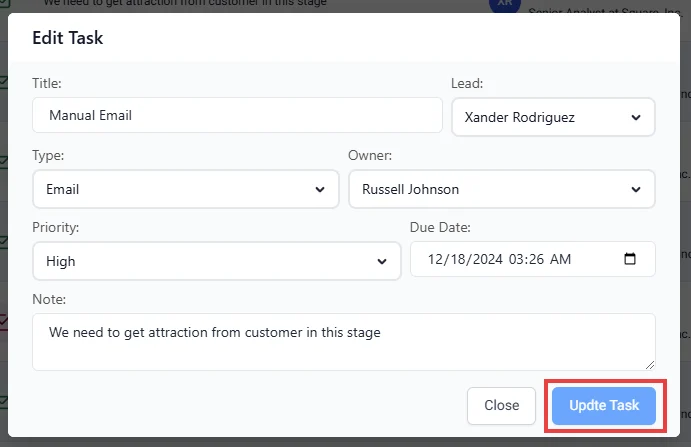
Locate the task you wish to update. Click on the three dots (action menu) next to the task, and then select the Edit button.
-
Save the Updated Task Information.
After making the necessary changes, click the Update Task button to save your modifications.
Remove the Old Lead Information
To delete lead information from a task, follow these steps:-
Go to the Task Page.
Find the task from which you want to remove the lead. Click on the three dots (action menu) and select the Delete button.
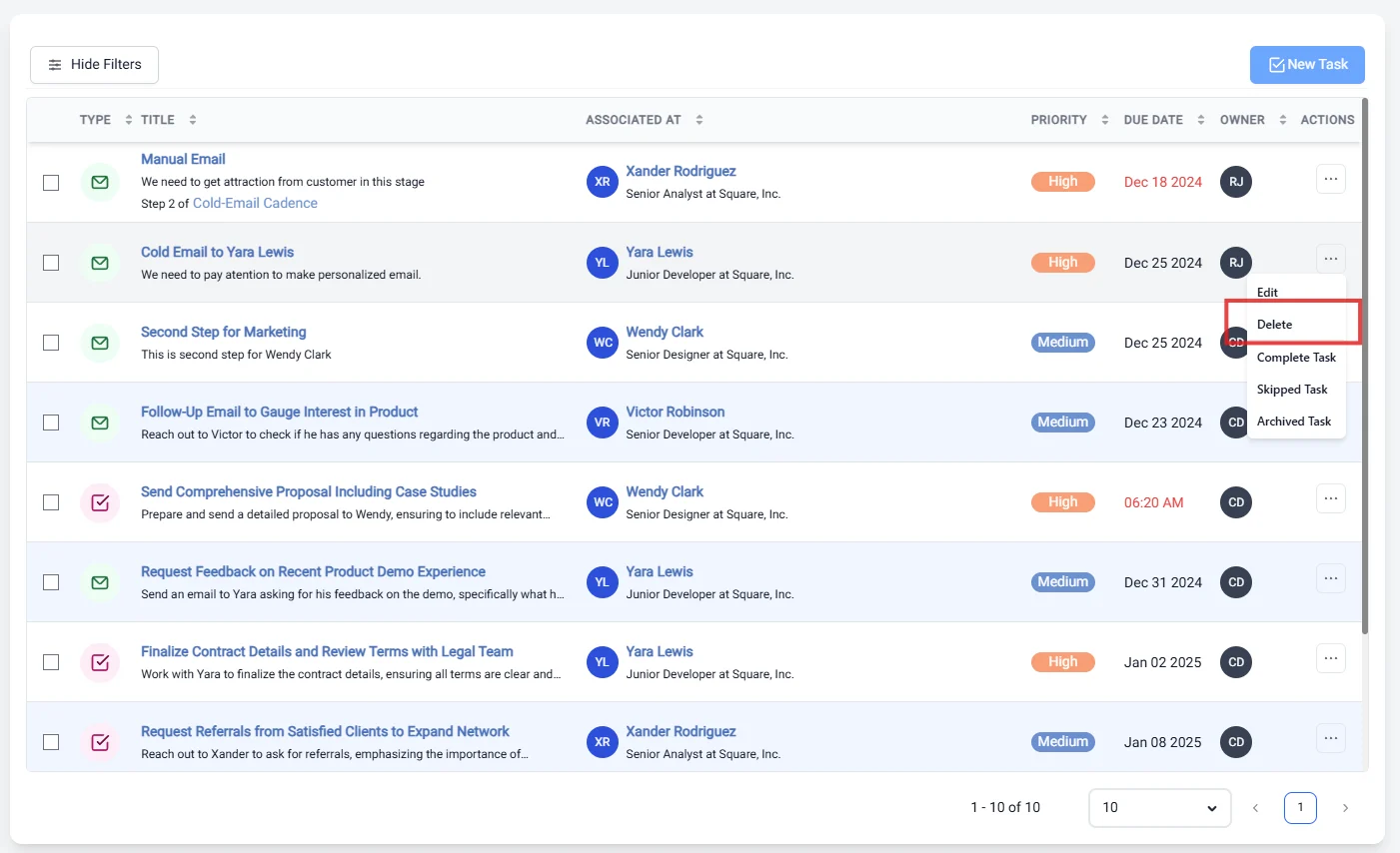
Note: This action can only be applied to manually created tasks, not to tasks generated by the Cadence.
Additional Actions for Tasks in Cadence
When working with tasks in a cadence, you have additional options to manage your tasks efficiently:Complete the Task in Cadence
- When you mark a task as complete, the cadence will automatically move to the next task. This streamlines your workflow and ensures that you stay on track with your cadence objectives.
Skip the Task in Cadence
- If you choose to skip a task, the cadence will also automatically proceed to the next task. This option is useful when you encounter a task that cannot be completed for any reason, allowing you to maintain momentum in your workflow without manual intervention.
By following these steps and utilizing the available options, you can effectively manage your tasks, ensuring a productive and organized approach to your work.